HomeDocumentationGetting started
Getting started
No code is required to start measuring. Sign in, add the public website, confirm what Basiro proposes, and wait for the first measurement.
Last updated 7 October 2026
Set up the first brand
Follow the steps in order. Each one names the screen, the action, and the result you should see before you continue.
1. Sign in
Purpose. Open the Basiro App with your account.
Where. On this website, use Log in.
What you do. Click Log in. The signed-in app is available in English, Turkish and Arabic.
What you should see. The Basiro App opens and you are signed in. No website code is required before this.
2. Add the website
Purpose. Tell Basiro which public site to measure.
Where. Brand setup in the Basiro App, before Overview has a measurement.
What you do. Enter the domain of the public website you want measured. This website does not collect a domain and then discard it.
What you should see. The brand name appears in the switcher at the top of the sidebar.
3. Confirm brand, category and market
Purpose. Make the measurement match the business you actually sell.
Where. Overview, the Getting started card Markets & questions. Filters: Market, Persona, Topic.
What you do. Read the proposed market and questions. Change a market or question that does not match the business.
What you should see. The Market filter shows the market you kept.
Review competitors and questions
4. Review competitors
Purpose. See who is named in the same answers.
Where. Overview. The card Your share among rivals, and the chart Share of answers over time.
What you do. Read the other names on the chart. Treat a name as a rival only if that business competes with you.
What you should see. Your brand and the other names appear on the same chart.
5. Review tracked questions
Purpose. Check the customer questions Basiro will ask again.
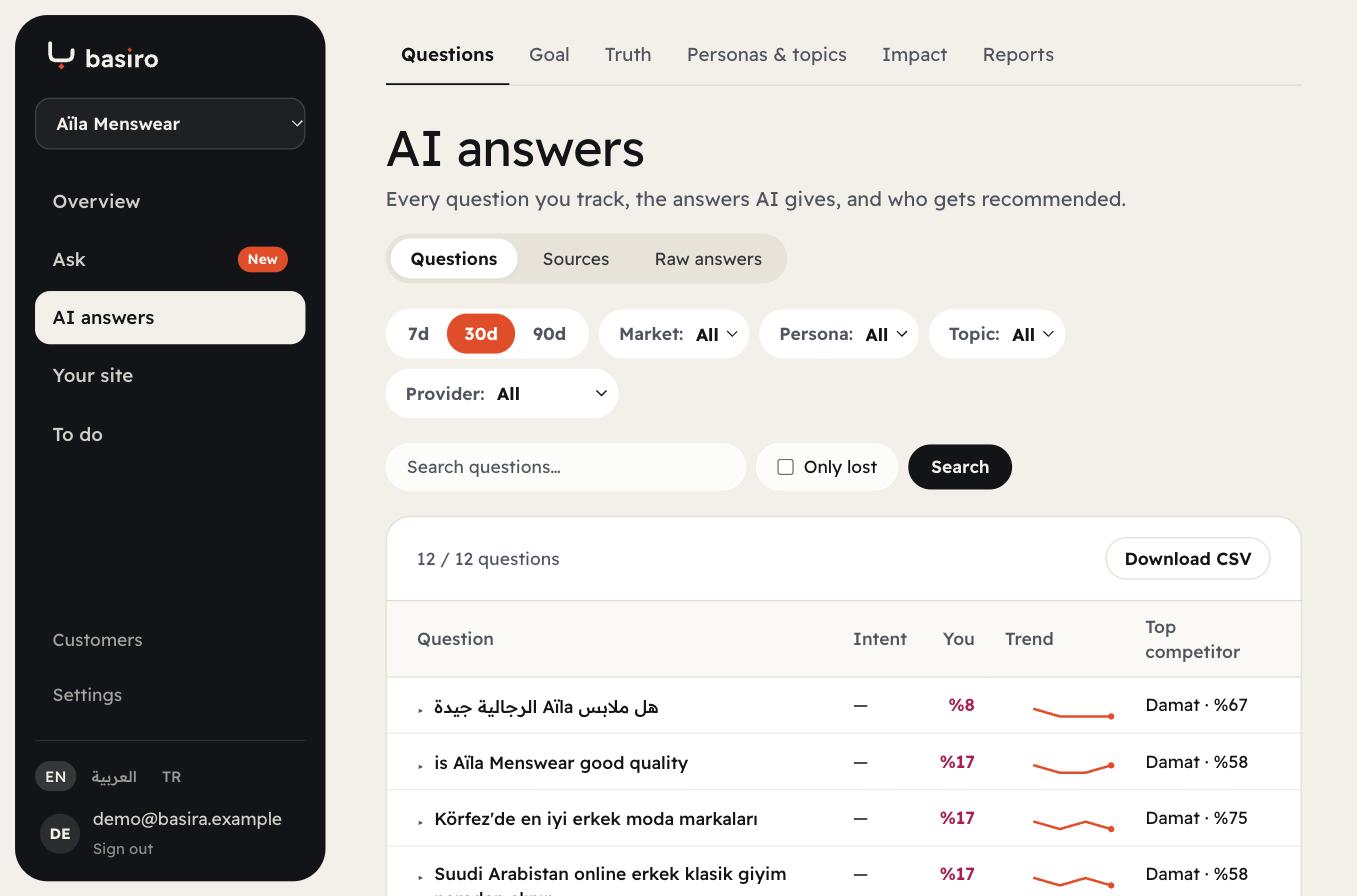
Where. AI answers, then the Questions tab.
What you do. Open the list. Use Search questions. Turn on Only lost when you want questions where your brand is missing.
What you should see. A table with Question, Intent, You, Trend and Top competitor.
AI answersQuestions
Run or wait for the first measurement
6. Run or wait
Purpose. Get one real sample of what the answer engines say.
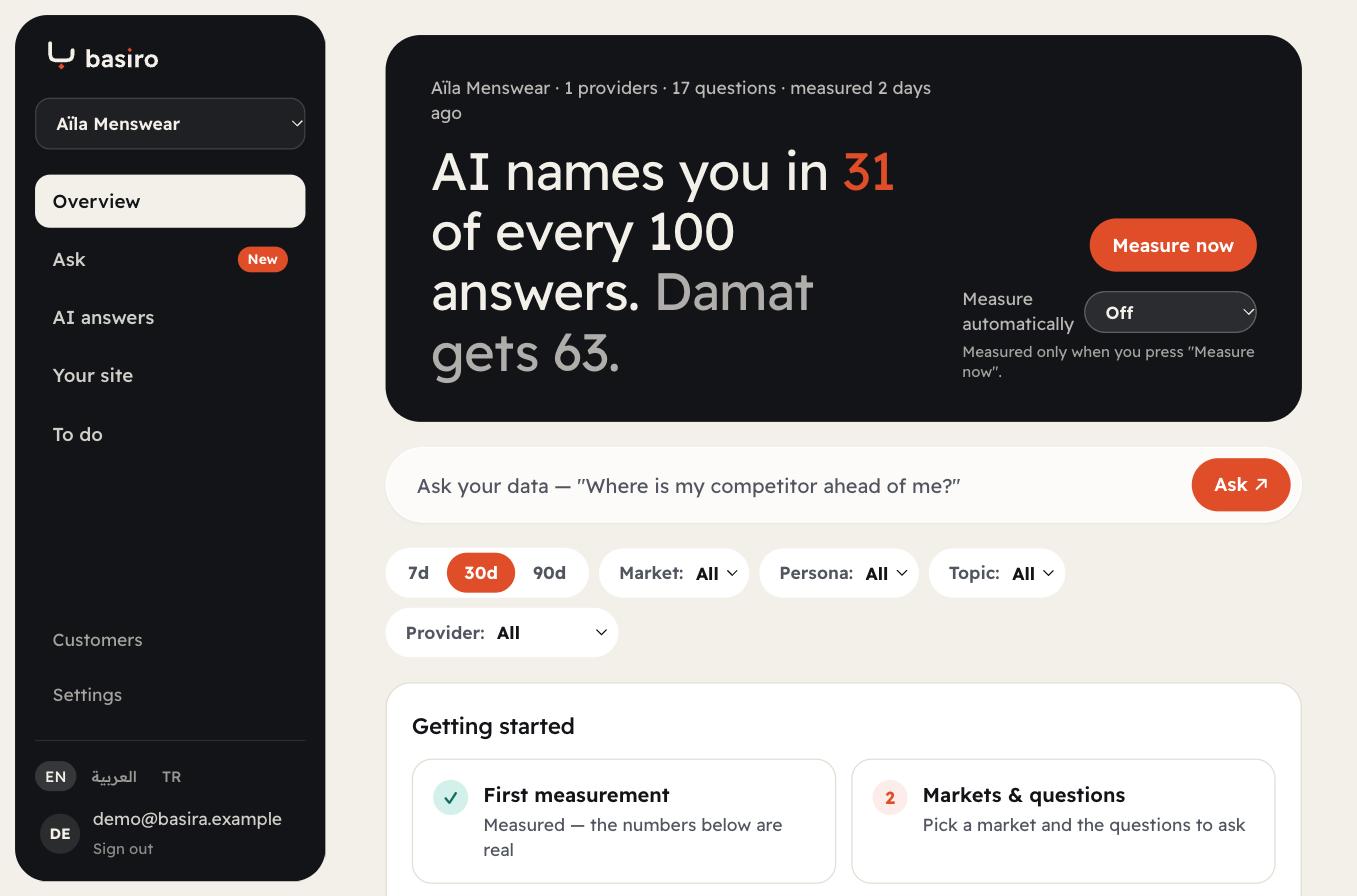
Where. Overview. The button Measure now. Measure automatically can stay Off.
What you do. If the Getting started card already says the first measurement is done, read it. If not, press Measure now and wait.
What you should see. The First measurement card says the numbers come from a real run. Free Audit is one sample: 1 brand, 10 questions, 1 engine. It is not weekly monitoring.
Read Overview
7. Open Overview
Purpose. Read the first result in one place.
Where. Sidebar, Overview.
What you do. Open Overview. Set 7d, 30d or 90d, and Provider.
What you should see. A summary of how often AI names the brand, plus Visibility and share among rivals.
Overview
Add critical facts, then decide on traffic and knowledge
8. Add critical verified facts
Purpose. Give Answer Accuracy a fact a person has approved.
Where. Overview, the card Told correctly, then Add your prices and rules. Also AI answers → Truth.
What you do. Add a price, a fee, hours, a policy or a contact detail. A person approves or rejects it.
What you should see. Told correctly is no longer only an empty prompt. Approval does not publish the fact.
9. AI traffic is optional
Purpose. See crawler and agent visits only if you want that evidence.
Where. Your site → AI visitors.
What you do. Connect the Basiro widget or an Edge connection only for this view. Skip it to keep measuring answers.
What you should see. Visit counts. A visit is not a citation.
10. Open Knowledge Hub when you are ready
Purpose. Turn trusted sources into reviewed facts. You can skip this on the first day.
Where. Knowledge → Overview.
What you do. Add a source when you want candidate facts. Leave publishing off.
What you should see. A private hub. Public publishing stays off until you open Knowledge → Publishing and opt in.
What to do next
- Open AI Visibility and separate a mention from a citation.
- Open Answer Accuracy and compare one claim with an approved fact.
- Open To do only after you have a measurement to act on.
What this does not prove
- The first sample does not prove that a chosen URL was cited.
- A brand name in an answer is not a citation and not a resolved issue.
- Skipping the widget does not block answer measurement.
- The signed-in application is not fully French. French pages on this website describe the product; the audit button opens the English application route.
Continue